We've all been there: you press "Print," anticipate a crisp document, and instead, you're met with the dreaded "Printer Offline" message, or worse, nothing happens at all. It's a small moment of frustration that can derail your workflow. In today's interconnected world, printers are no longer just standalone machines; they're vital network devices. And just like any device on a network, your printer relies on a unique digital address to communicate effectively – its IP (Internet Protocol) address.
This often-overlooked string of numbers is the secret handshake that allows your computer, smartphone, or tablet to find and send data to your printer. But what exactly is it, and more importantly, why should you care about finding it? Let's demystify this critical piece of information.
Imagine every house on a street having a unique street number. That number allows mail to be delivered correctly, and visitors to find their destination without getting lost. In the digital world, an IP address serves a very similar purpose.
A Printer IP Address is a unique numerical label assigned to your printer when it's connected to a computer network (like your home Wi-Fi or office Ethernet). It acts as your printer's distinct identifier, allowing other devices on the same network to locate, communicate with, and send print jobs to it. Without this specific "address," your computer wouldn't know where to send its data, leading to a breakdown in communication.
Understanding and occasionally knowing your printer's IP address isn't just for IT professionals; it's a fundamental step that empowers you to troubleshoot, set up, and manage your printer more effectively. Here's why it's so important:
Troubleshooting Connectivity Issues: This is perhaps the most common reason. When your printer stubbornly refuses to print, or constantly shows as "offline," checking its IP address is often the first diagnostic step. It helps confirm if the printer is even connected to the network and if your computer is trying to reach the correct address. If the IP address has changed (which can happen with dynamic IP assignment), knowing the current one can quickly resolve the problem.
Manual Printer Setup and Installation: While many modern printers offer automatic setup, there are times you'll need to add a network printer manually. This is especially true in office environments or when installing specialized printing software. The installation wizard will often ask for the printer's IP address to establish a direct, reliable connection.
Accessing the Printer's Web Interface: Most network-connected printers come with a built-in web server. By simply typing your printer's IP address into a web browser, you can access its administrative interface. This allows you to:
Ensuring Consistent Printing Performance: In environments where printers are heavily utilized, a stable connection is paramount. Knowing the IP address helps you verify that your printer is consistently reachable on the network, preventing intermittent connection drops that can interrupt print jobs.
In essence, your printer's IP address is its digital fingerprint on your network. It's the key to maintaining a smooth, efficient, and frustration-free printing experience. In upcoming guides, we'll walk you through the simple methods to find this vital address for your specific printer model, putting you back in control of your printing destiny.
affiliated industriesWe've all been there: the dreaded "printer offline" message, a new network printer refusing to connect, or the need to tweak advanced settings that seem hidden behind a digital wall. Often, the key to unlocking these mysteries and regaining control lies in one simple piece of information: your printer's IP address.
Think of your printer's IP address as its unique street address on your local network. Just like you need a street address to send a letter, your computer needs the printer's IP address to send print jobs or access its administrative functions. Without it, your devices are essentially shouting into the void.
In this post, we'll dive deep into how to find your printer's IP address, exploring various methods, their key features, benefits, and when each option shines.
There isn't a single "right" way to find your printer's IP; the best method often depends on your specific situation, your operating system, and whether the printer is already somewhat connected. Let's break down the most effective approaches.
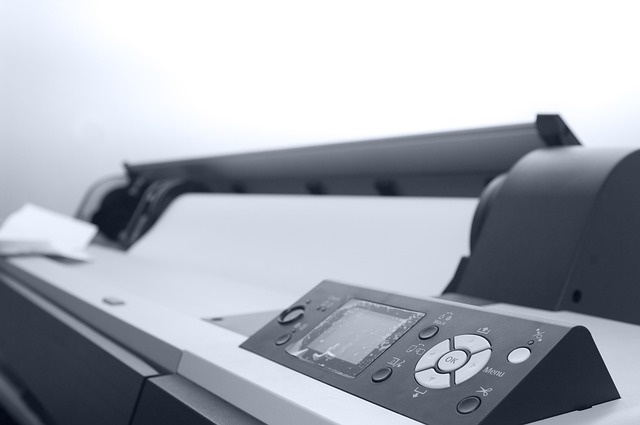
Many modern printers feature a small LCD screen or control panel. This is often the quickest and most direct way to find its IP address, as it requires no computer interaction.
Practical Scenario: Your printer is showing "offline" on your computer, but you want to quickly verify if it's connected to the network at all. You walk up to the printer and check its display.
How-To:
192.168.1.105).If your printer is already installed on your computer, your OS often stores its IP address (or at least the mechanism it uses to communicate).
Practical Scenario: You need to access your printer's web interface (which often uses its IP address) to change advanced settings, but you've forgotten the IP.
How-To (Windows):
How-To (macOS):
Your router is the central hub for all devices on your network. It assigns IP addresses and keeps a log of connected devices. This method is excellent for finding the IP of any connected device, including printers.
Practical Scenario: Your new wireless printer isn't showing up on any computer, and you suspect it might not even be connected to the Wi-Fi correctly. Checking the router is a definitive way to see if it's on the network.
How-To:
192.168.1.1, 192.168.0.1, 119.168.1.254, or 10.0.0.1).For those comfortable with command-line interfaces, these methods offer quick ways to query your network.
Practical Scenario: You know your printer's network name (e.g., "HP-OfficeJet"), and you want to quickly check if it's responding and get its IP.
How-To (Windows Command Prompt):
cmd).HP-OfficeJet), type ping HP-OfficeJet and press Enter. The IP address will be shown in the response.arp -a and press Enter. This displays the ARP table (Address Resolution Protocol), which maps IP addresses to physical MAC addresses for devices your computer has recently communicated with. Look for your printer's MAC address (often on a sticker on the printer) and find its corresponding IP.How-To (macOS Terminal):
ping printername.local (e.g., ping HP-OfficeJet.local) and press Enter.arp -a to list devices your Mac has communicated with.Many printers have a built-in feature to print a detailed configuration page, which almost always includes the IP address and other network settings.
Practical Scenario: You're setting up a new network for your small office and need to document all printer network settings, including the IP, subnet mask, and gateway.
How-To:
| Method | Best For | Ease of Use | Reliance on Setup | Ideal Scenario |
|---|---|---|---|---|
| Printer Control Panel | Quick, direct verification | Easy - Medium | None | Printer is physically accessible, quick check needed |
| Operating System (OS) | Printer already installed on your computer | Easy | High | Accessing web interface, reconfiguring port |
| Router Admin Page | Comprehensive network overview, troubleshooting | Medium - Hard | None | Printer not showing up anywhere, network diagnosis |
| Command Prompt/Terminal | Tech-savvy users, advanced diagnostics | Medium - Hard | Medium | Quick check by printer name, advanced troubleshooting |
| Print Config Page | Detailed network info, physical record | Easy - Medium | None | Documenting settings, new network setup |
ping) is the first step to diagnose if it's a network issue or a printer-specific problem.Pros:
Cons:
ping it from your computer. If it doesn't have an IP, it's not connected to your Wi-Fi – time to reconfigure its wireless settings.Don't let a "printer offline" message intimidate you. By understanding how to find your printer's IP address, you gain a powerful tool for troubleshooting, configuration, and unlocking the full potential of your printing device. Whether you prefer the direct approach on the printer's display, the familiar interface of your OS, or the comprehensive view of your router, there's a method that fits your needs. So next time your printer acts up, remember its street address – it's your first step to getting back in control!
Finding your printer's IP address might seem like a small detail, but it's often the key to unlocking seamless printing, troubleshooting connectivity issues, or setting up advanced network features. We've explored various methods, and now it's time to consolidate that knowledge into a practical conclusion, helping you choose the best approach for any situation.
We've covered three primary pathways to uncover your printer's network identity:
On the Printer Itself (The Direct Approach): This involves navigating your printer's control panel (LCD screen) or printing a network configuration/test page.
Via Your Computer (The Connected Approach): If your printer is already installed on your computer, you can often find its IP through:
ipconfig /all (Windows, to see your PC's gateway), arp -a (to list devices the PC has communicated with), or directly pinging the printer's hostname if known.Through Your Router or Network Tools (The Network Detective Approach):
If you take away one piece of advice, let it be this:
If you have physical access to your printer, always start by checking its own display panel or printing a network configuration page.
This is by far the most reliable, accurate, and often the quickest way to find its current IP address. It bypasses any potential computer-side software issues or network complexities, giving you the definitive answer straight from the source.
Choosing the right method depends on your immediate situation and technical comfort level. Here's how to decide:
Assess Your Physical Access:
Consider the Problem:
Gauge Your Technical Comfort:
Know Your Network (Optional but Recommended):
Knowing how to locate your printer's IP address is more than just a tech trick; it's a fundamental skill for managing your home or office network. By understanding the direct, connected, and network-centric approaches, and by always prioritizing the printer's own display for immediate accuracy, you can confidently diagnose, connect, and optimize your printing experience. Armed with these strategies, you're now equipped to tackle any printer IP challenge that comes your way.